
If you searched for templates google sites, you are not looking for a long tutorial: you want to see ready-made designs, pick one, and have your page up in minutes. In this guide I show you where to find Google Sites templates, what the official gallery includes, which third-party sources are worth your time, and how to apply a template step by step.
In short: Google Sites includes a free official template gallery (portfolio, project, restaurant, help center, education and more) that you apply in two clicks from sites.google.com → «Template gallery». If none of them fits, you can duplicate any existing site or use third-party templates — just check the license first.
What a Google Sites template is (and what it is not)
A template is a complete, ready-designed site: it comes with its pages, sections, sample text and images, all waiting for you to swap in your own. You do not start from a blank page; you start from a structure that already works.
Do not confuse it with a theme. A theme only changes the colors, fonts and overall style of a site. The template defines the structure; the theme is the outfit it wears. In fact, after applying a template you can change its theme at any time without losing your content.
Where to find Google Sites templates: the 3 sources
1. The official Google gallery (free)
This is the safest option and the one I recommend starting with: the templates live inside Google Sites itself, there is nothing to download or install, and Google keeps them updated. If your search was google sites template free, this gallery is exactly what you were looking for.
2. Duplicate a site that already exists
Any Google Site can be duplicated, and that copy works as a template. It is perfect for reusing your own design across similar projects, or for starting from a site a teammate shares with you. I explain how below.
3. Third-party templates (free and paid)
External designers and companies sell or give away templates with more elaborate designs than the official ones. Some are excellent, but read the fine print: always check the license before using one on a commercial project. More on this in its own section below.
The official gallery templates, one by one
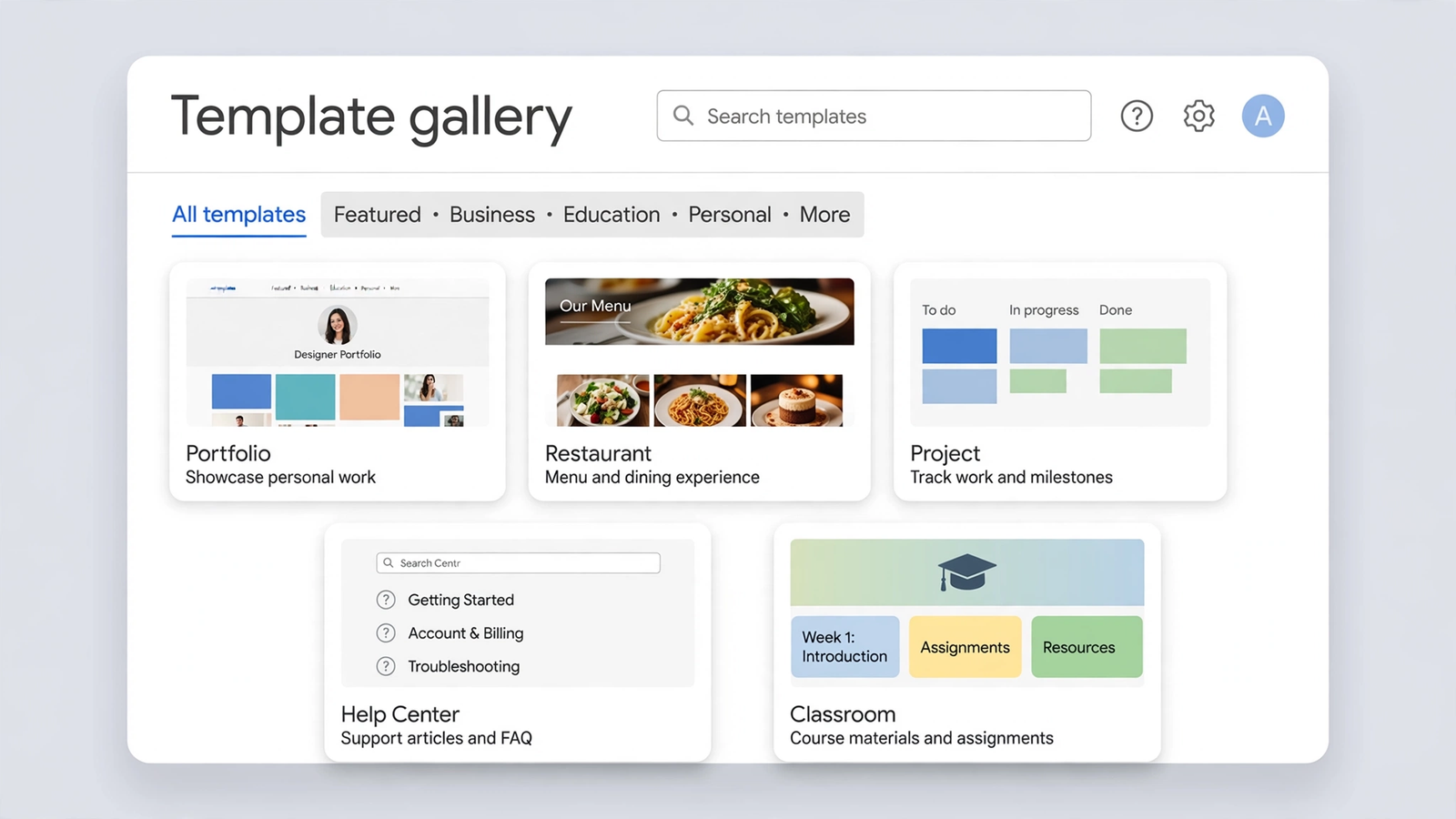
The gallery is organized into three families: Work, Personal and Education. These are the most useful ones (the exact selection can vary by account and language):
Portfolio
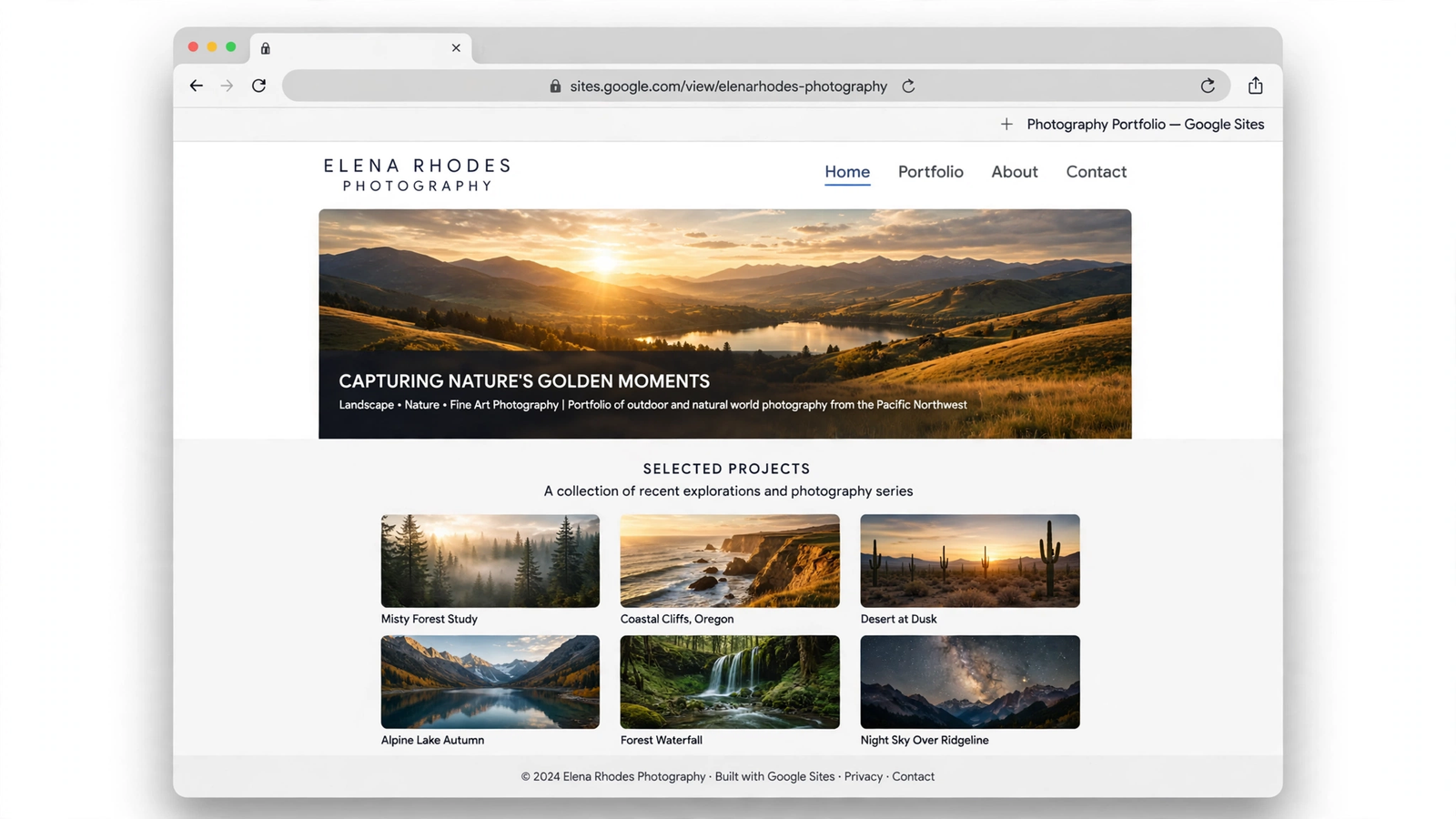
For showing your work if you are a freelancer, designer, photographer or independent professional. It includes a projects page with room for images, results and contact details.
Project
Built to present a project: its mission, its story, the team and a call to action. Useful for startups, nonprofits and group work.
Help Center
A support structure with FAQs and resources. Ideal if you want a help page for your clients or your community without paying for another tool.
Restaurant
For food businesses: a photo-led home page, room for the menu, opening hours, a map location and a booking or contact button.
Student Portfolio
Lets students showcase their achievements, goals and activities in a clean design. Widely used in schools and universities.
Class and Club
The education pair: «Class» organizes schedules, resources and newsletters; «Club» works for activities, events and group news.
If your account is a Google Workspace account (from a company or organization), you may also see a custom template gallery created by your own admin.
How to use a Google Sites template, step by step
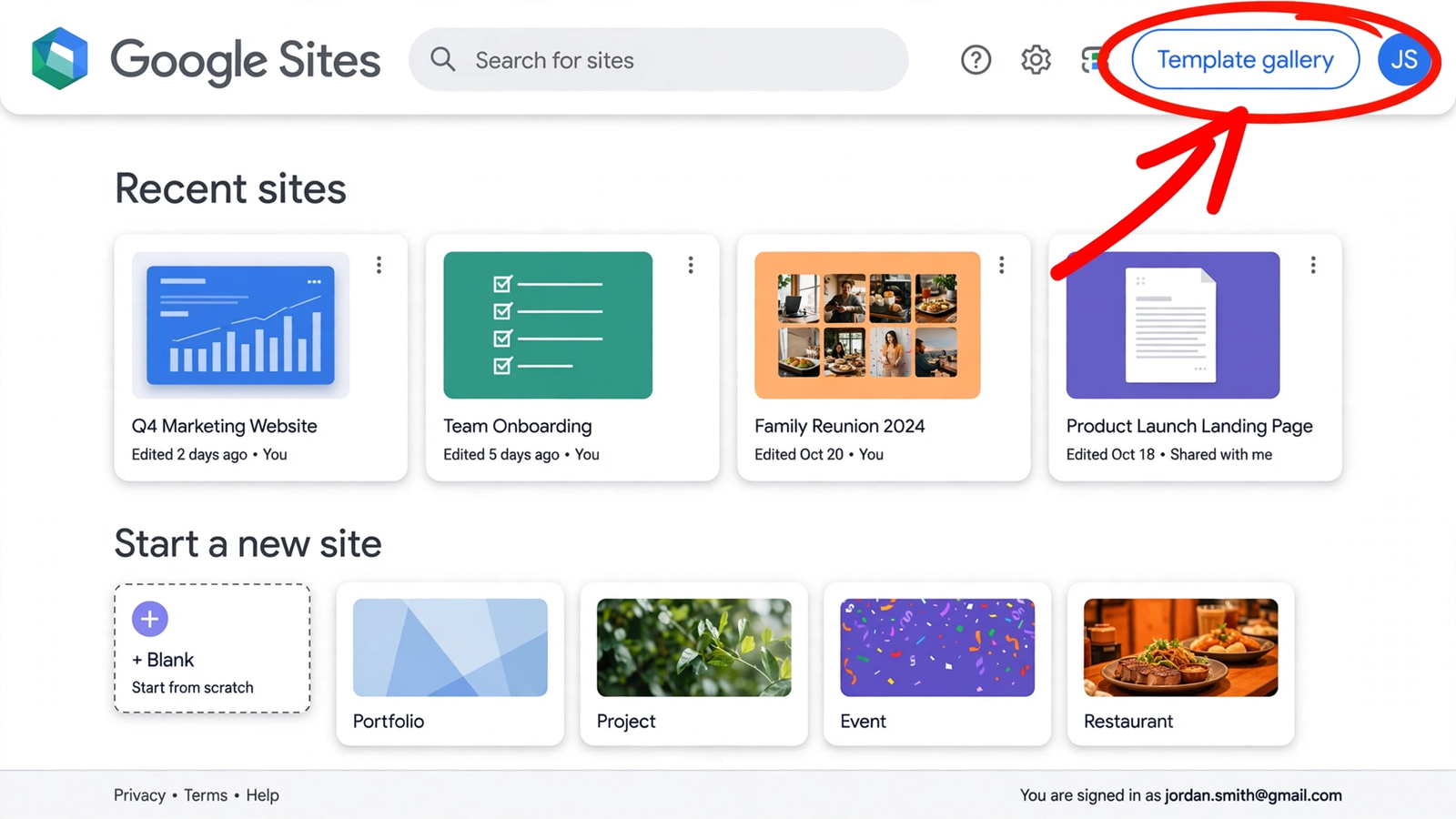
- Go to sites.google.com and sign in with your Google account.
- At the top right, click «Template gallery».
- Browse the categories and click the template you want: a copy opens, ready to edit (the original template is never modified).
- Replace the sample text and images with your own, and adjust the theme (colors and fonts) to your brand.
- Click «Publish», choose your web address, and you are done.
A trick that saves a common stumble: if you type sites.new into your browser, Google creates a blank site right away and you will not see the gallery. To pick a template, always go through sites.google.com.
Third-party templates: more variety, with fine print
If the official gallery feels too small, these are the best-known third-party sources:
- Steegle: the largest marketplace of Google Sites templates, with dozens of paid designs for businesses, portfolios and intranets.
- I Make Templates: free and premium templates, with creative designs for portfolios and small businesses.
- SitesAvant: free templates for businesses, education, portfolios and communities.
Before using one, check its license: a template advertised as «free» does not always mean you can use it on a commercial project or without attribution. Some require a paid license for business sites. Two minutes reading the terms will save you a problem later.
How to turn any site into your own template
If you already have a Google Site whose design you like, you can reuse it as the base for your next ones:
- Open the site in edit mode.
- Click the three-dot menu (⋮) next to the «Publish» button.
- Choose «Duplicate site», name the copy, and click «Duplicate».
- Edit the copy with the new content: the original stays untouched as your master template.
You can also do it from Google Drive: right-click the site → «Make a copy». It is the most practical way to share a template with your team or a client.
Template or start from scratch? My recommendation
| With a template | From scratch | |
|---|---|---|
| Speed | You can publish today | Takes longer to build the structure |
| Design control | You start from a given structure | Total control, section by section |
| Best for | Informational sites, portfolios, support pages | Landing pages built to convert |
My rule as a designer: for a full website or an informational page, a template saves you hours. For a landing page that has to sell or capture leads, I prefer starting blank and controlling every section — and if you need ideas for what those sections should look like, my landing page ideas guide is a good place to start. And if you want the complete walkthrough, my tutorial on how to create a landing page with Google Sites (in Spanish) builds one from a blank site, step by step, video included.
Frequently asked questions about Google Sites templates
Are Google Sites templates free?
Yes, every template in the official gallery is free and applies with nothing to download. Third-party templates can be free or paid, and some require a license for commercial use.
Can I use a template for a landing page?
You can, and for a fast first version it works. But if your goal is turning visits into leads or sales, I recommend building it from scratch with the sections in the right order, starting from the ideas linked above.
Can I change the design after applying a template?
Yes. The template is only the starting point: you can change text, images, whole pages and the entire theme (colors and fonts) whenever you want. The one thing you cannot do is swap one template for another on an existing site; in that case you duplicate your content into a new site.
Are the templates available in other languages?
The interface and most official templates are available in many languages. The sample texts come in your account’s language anyway, and you will be replacing them with your own.
To wrap up
Google Sites templates are the fastest way to have a presentable page without paying anything or knowing how to design. Pick one from the official gallery, swap in your own text and images, and publish today. And when you need a page built to convert, you know the drill: blank site, and the right sections in the right order.
Want me to review your Google Site or help you choose a template? Reach me through my contact page.